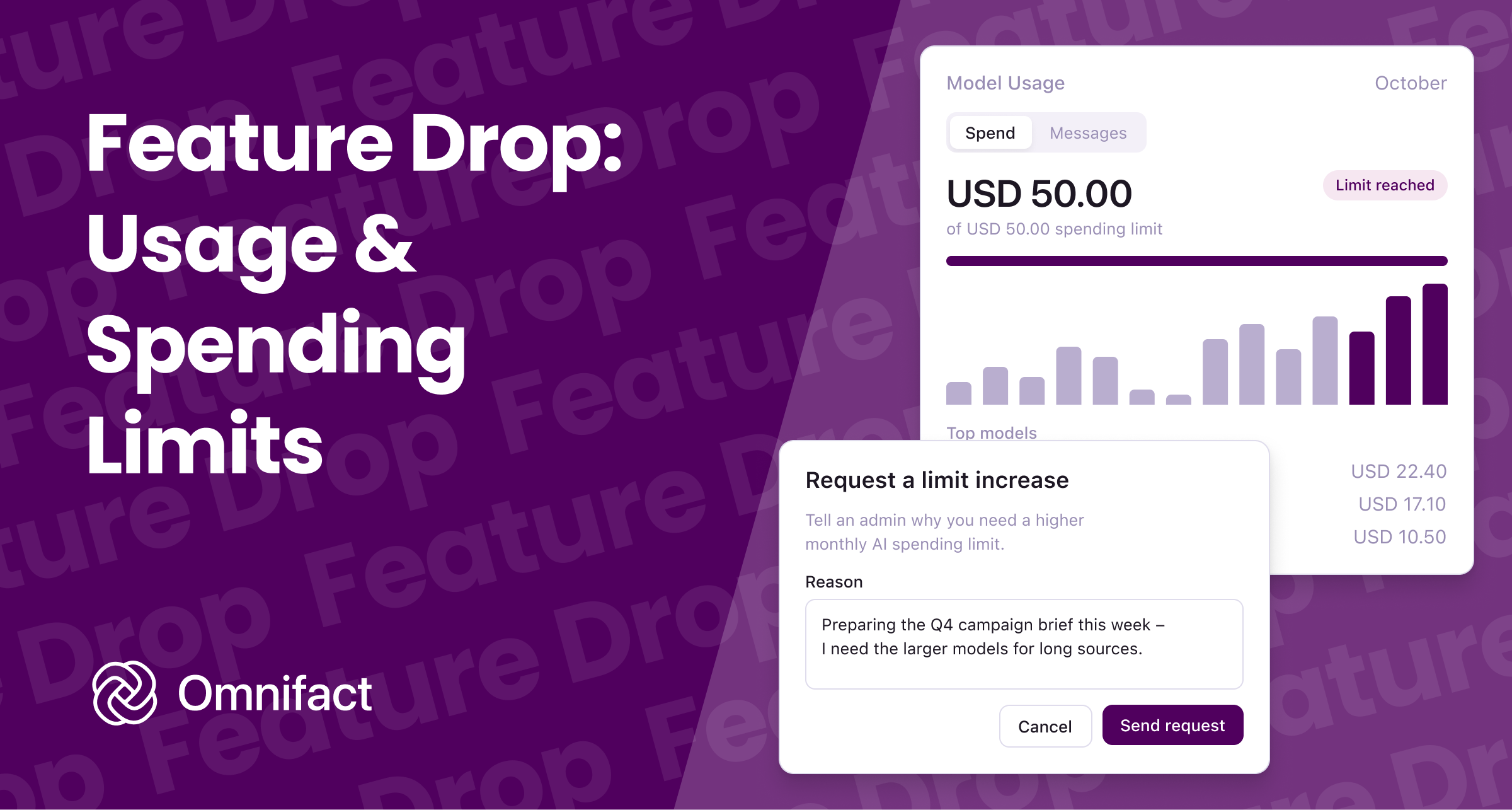
View your personal model usage privately, set fair per-user spending limits, and approve limit increase requests in a few clicks.
Feature Drop: Personal Model Usage, Per-User Spending Limits, and Credit Top-Ups
Published on October 29th, 2026
Shared AI budgets make it easy to give your whole team access to frontier models, until a few heavy research or coding sessions use up the monthly pool early. For European teams, keeping costs predictable should not mean monitoring individual employees or slowing people down when they are in the middle of important work.
Today we are expanding Omnifact's usage and billing tools so everyone can see their own usage privately, while administrators get simple guardrails to share the team budget fairly.
A Private View of Your Own Model Usage
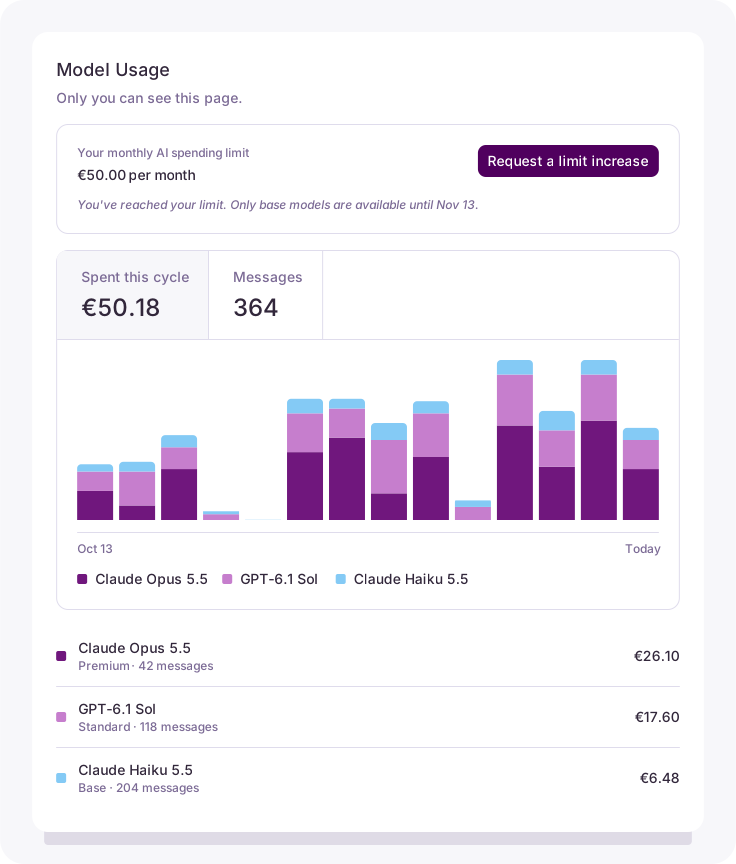
Every team member now has a personal Model Usage page under Account Settings → Model Usage. This view is strictly private to you: administrators and colleagues cannot see your personal spend or model history.
At a glance, you can switch between your monthly spend and message count, see your daily activity across the current billing cycle, and check which models you rely on most.
Fair Team Guardrails Without Surveillance
To prevent a single power user from accidentally exhausting the shared pool, administrators can now set a default Per-user spending limit in Settings → Billing & Usage.
Keep Everyday Work Moving with Base Models
Reaching a monthly cap does not have to stop someone's workday. Administrators can allow base-tier models (like Claude Haiku 5.5, GPT-6 Luna, or Gemini 3.5 Flash Lite) to stay available even after a member reaches their spending limit, while larger models pause until the next cycle.
Custom Limits and In-App Requests
Different roles have different needs. Someone running deep Reasoning across long contracts or working with complex code systems will naturally use more credits than someone drafting quick emails. Administrators can assign a higher Individual limit for specific team members in Settings → Users, seeing only whether a limit is active or reached, never what the person spent.
If a team member hits their cap in the middle of a project, they don't need to chase an admin on Slack:
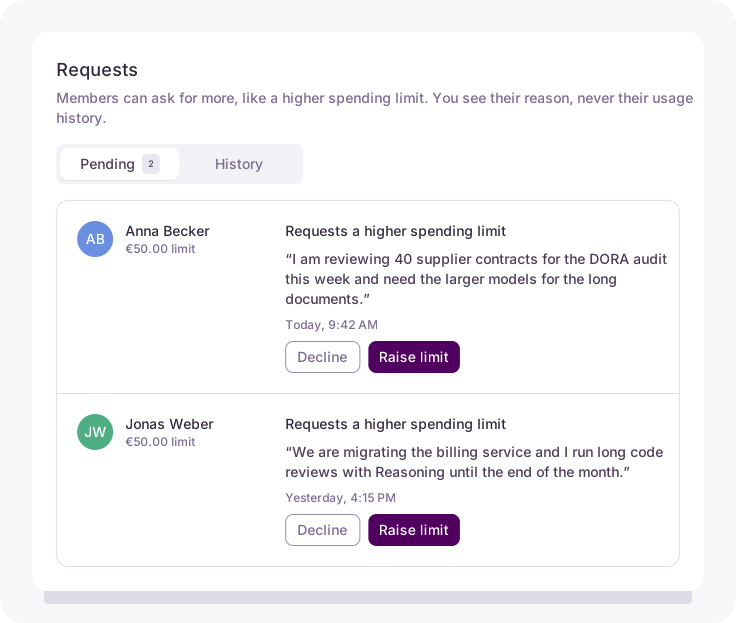
- Ask in one click: Members can click Request a limit increase right from the Chat Input or Model Usage and add a short note explaining what they are working on.
- Approve in seconds: Administrators review requests under Team Settings → Requests, read the member's note, and set a new limit that takes effect immediately.
Self-Serve Credit Top-Ups
As teams expand their use of Spaces and Connected Sources, their overall credit needs often grow too. Invoiced organizations can now click Add More Credits in Settings → Billing & Usage to permanently top up their monthly usage credits on the spot, with the additional budget available immediately.
Across every model and budget setting, all prompts and documents continue to pass through our Privacy Filter, using rule-based and AI-powered detection to pseudonymize PII within Omnifact's infrastructure before data reaches any external model.
Available Today
All of these updates are live today across Omnifact:
- Team members can check their personal activity under Account Settings → Model Usage.
- Administrators can set default limits and add monthly credits in Settings → Billing & Usage, set individual limits in Settings → Users, and review requests in Settings → Requests.