Connect Google Drive, OneDrive, and SharePoint directly to your Spaces.
Feature Drop: Connected Sources
Published on May 30th, 2026
Omnifact now supports Connected Sources, allowing you to link folders and files from Google Drive, OneDrive, and SharePoint directly to your Spaces. We have also updated our Space settings—what used to be called "Knowledge Base" is now simply "Knowledge," giving you a single place to manage both manually uploaded files and live-synced cloud sources. This makes it easier than ever to securely chat with your documents.
Building on our previous work with Cloud Integrations and Folder Uploads, we wanted to make this even better. Previously, keeping your AI assistant up to date meant manually uploading new versions of documents whenever they changed. Now, with Connected Sources, Omnifact automatically indexes your cloud sources and keeps the content synced in the background. Your files remain securely in their home system, while your AI assistant always has access to the latest information—a critical component for Enterprise RAG — Building Effective AI Assistants with Internal Knowledge.
Key Benefits
- Automatic Syncing: Omnifact detects changes, new files, and deletions in your connected sources and updates the index automatically. This helps overcome the challenges discussed in 'The Myth of "AI-Ready" Data: Why Privacy is Your Real Enterprise Bottleneck'.
- Direct Citations: When the AI assistant uses information from a connected source, it cites the original file with a direct link to your cloud storage, building on our inline sources for clearer answers feature.
- Unified Knowledge Management: Manage both your manually Uploaded Files and Connected Sources from the new Knowledge tab in your Space settings.
- Secure and Attributed: Each connection is tied to the team member who authorized it, and organization admins control which cloud providers are available.
Start Using Connected Sources
Connect your first cloud source today to give your AI assistants real-time access to your team's living documents. To explore further ways to extend your assistant's capabilities, check out Unlocking AI's Full Potential: How MCP Connects Your AI to Everything.
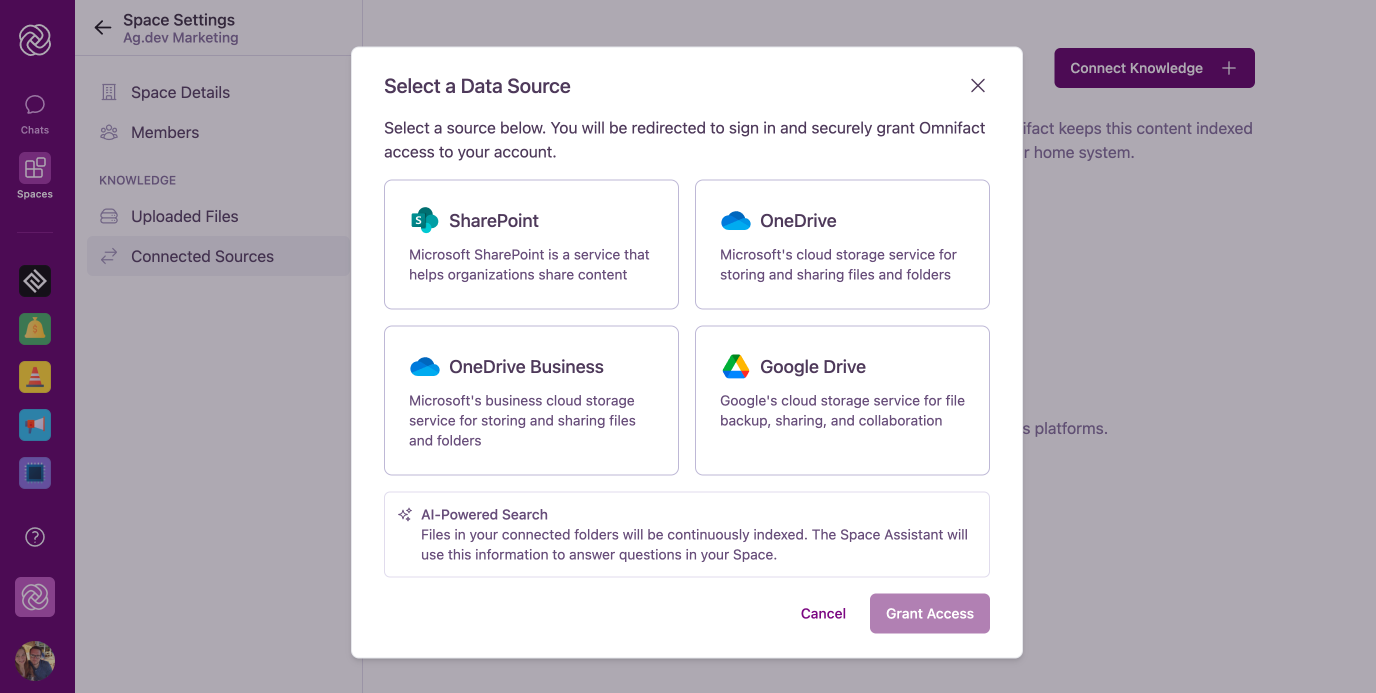
- Open your Space settings and navigate to the Knowledge section and click on the Connected Sources tab.
- Click Connect Knowledge.
- Select your provider, authorize access, and choose the folders and files you want to index.