Browse and connect vetted business integrations in Omnifact with individual account sign-in.
Feature Drop: The Integrations Catalog
Published on October 6th, 2026
Connecting workplace AI to business software has often required complex custom integrations or shared logins that give an assistant broad access to sensitive company files.
Today, Omnifact introduces the Integrations Catalog in Team Settings. Administrators can now browse a directory of vetted enterprise tools and connect services like Jira, Confluence, GitHub, Slack, and cloud storage in a few clicks. Every integration connects through open MCP servers with individual sign-in, giving team members immediate access to their daily software without compromising permission boundaries.
Curated Tools for Autonomous Chat Agents
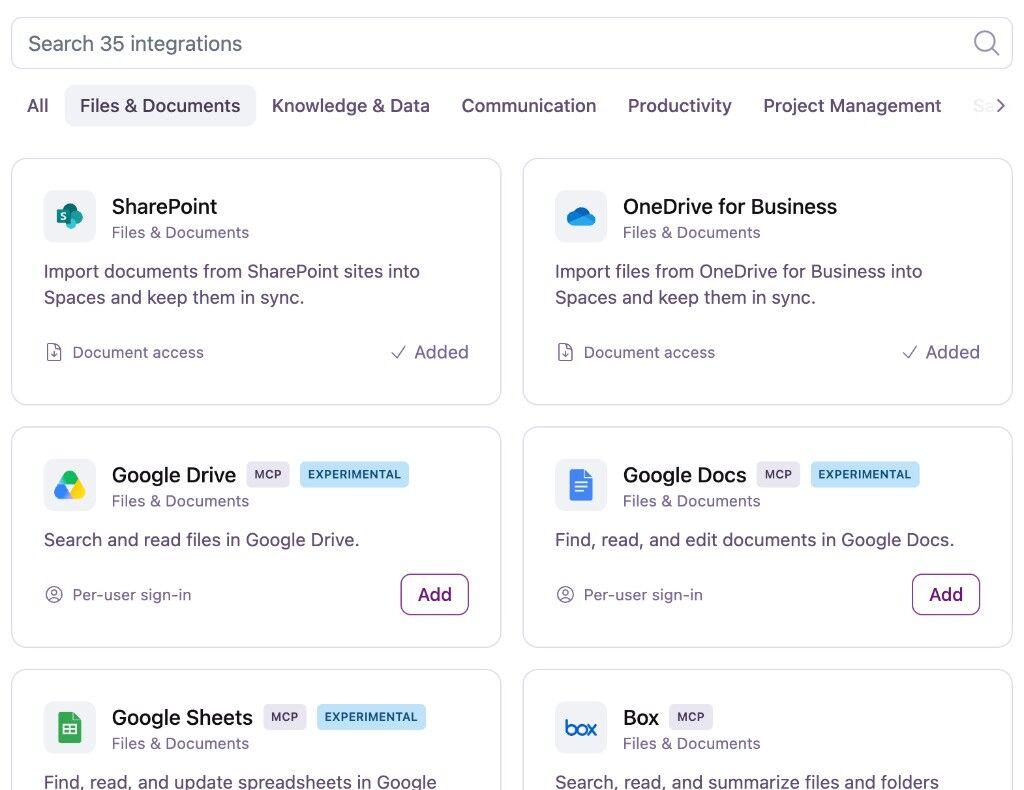
The Integrations Catalog makes connecting workplace software straightforward. Instead of dealing with server endpoints or API keys, administrators select ready-to-use integrations organized across categories like Project Management, Communication, Files, and Development.
Once connected, our autonomous chat agents can interact with those tools directly during normal conversations:
- Project updates: Agents can summarize sprint progress in Jira, check pull requests on GitHub, or search documentation in Confluence.
- Cross-tool workflows: Team members can review customer conversations in Zendesk alongside issue trackers like Linear or error reports in Sentry.
- Unified file access: Alongside continuous folder syncing with Connected Sources, agents can look up documents across Google Drive, Microsoft SharePoint, and Notion.
Simple Setup with Individual Permissions
Adding an integration takes seconds. An administrator simply clicks Add on a catalog card and signs in once to verify the connection and activate the tools for the workspace.
When team members ask an agent to look up a Jira ticket or post an update to Slack, they connect their own account. The agent only ever accesses what that specific person has permission to view. If someone does not have access to a private project or customer record, the agent cannot access it either.
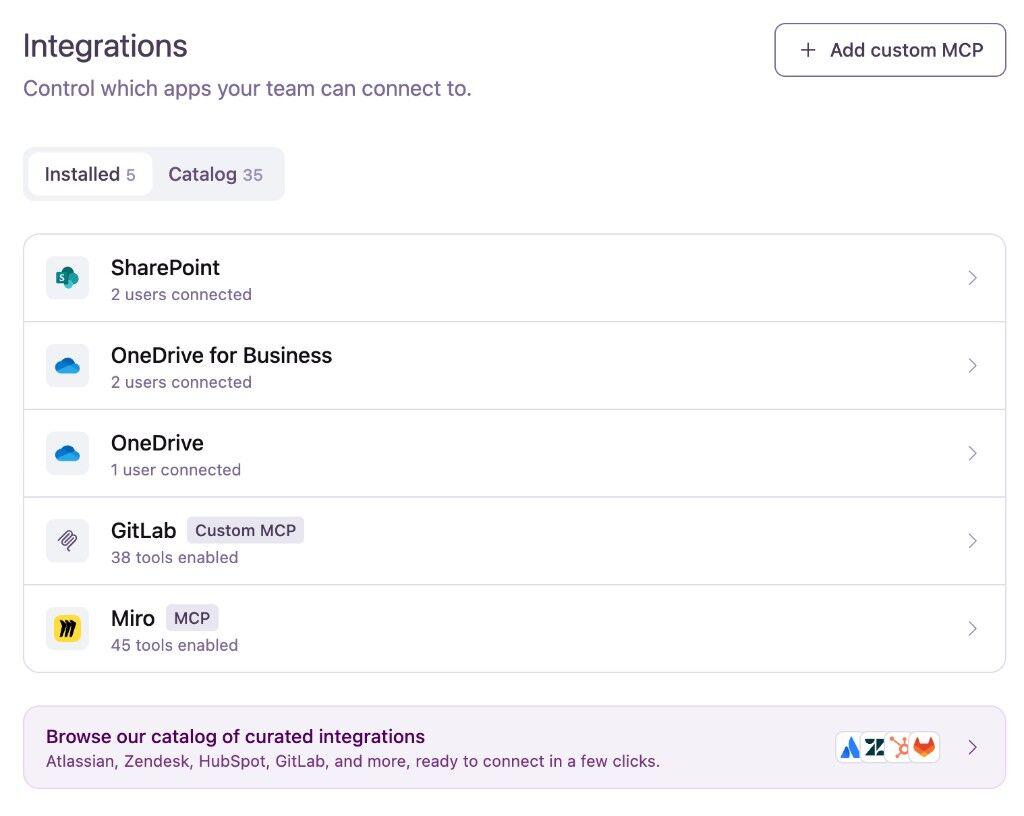
For advanced configuration, custom OAuth credentials, and per-tool execution policies, see our Integrations documentation.
Available Today in Team Settings
The Integrations Catalog is live today for all organizations.
Team administrators can explore available apps under Settings → Integrations in the Catalog tab. If you have questions about connecting your team's tools, reach out to our team or contact your account representative.